AI Assist is Sanity's AI assistant inside the Studio. It needs Sanity's Growth plan (or its trial): on projects without it, nothing on this page is available.
It shows up as a ✨ icon on the document and on each field, with two kinds of items:
- Instructions: Sanity's own feature. Reusable prompts that editors write themselves.
- Starter actions: buttons we added for common tasks, like translating or writing the SEO texts.
Everything they write is a normal edit: it stays a draft until you publish. Always review it first.
Default Sanity Assistant: Instructions (written by editors)
An instruction is a prompt saved on a field (or on the whole document), so it can be run again with one click. Each editor creates their own: only for themselves, or shared with the whole team.
To create one: ✨ → Manage instructions → Add item. The parts in brackets below are inserted with the editor's buttons (Field reference, User input), not typed.
Example — Draft from keywords
Write the text for this field from these keywords: [User input: "Keywords"]

Write it in [Field reference: Language].

- Use every keyword in natural sentences. Don't list them.
- Use only what the keywords and this document say. Don't invent names, numbers, dates, prices or claims.
- Fit the length to the field: one sentence for a short field, one or two short paragraphs for longer text.
- Match the tone of the rest of the document: clear and plain, with no marketing superlatives.
- No headings, quotes or emojis.
- Return only the text.
When it runs, a box asks for the keywords:
Keywords: ceramics studio, Barcelona, handmade tableware, workshops on weekends
And the field gets something like:
A ceramics studio in Barcelona making handmade tableware, with workshops open on weekends.
AI editing actions (predefined in the starter)
For multi-line text and rich text fields (descriptions, page and project text blocks, Meta Description), in every language. They don't appear on single-line fields like titles.
| Action | Where | What it does |
|---|---|---|
| Write a draft | ✨ on an empty text field | Asks "What should this text say?". Answer informally: quick notes, keywords or half sentences, in any language (e.g. "weekend workshops, small groups, beginners welcome, book by email"). It turns them into well-written text, in the field's language and the page's tone. It uses only the facts in your brief and the page: it doesn't invent names, dates, prices or claims. |
| Proofread | ✨ on a text field with text | Fixes spelling, grammar and punctuation only, in the field's language. It doesn't rephrase, shorten or change the meaning. |
Write a draft never overwrites: to draft again, empty the field first. Proofread is the only action that edits existing text: check the changes, and if you don't like them, restore the previous version from History (top-right of the document).
A natural workflow: Write a draft, edit it, then Proofread.
AI translation actions (predefined in the starter)
The starter translates content in two ways, depending on the document type:
| Document translation | Field translation | |
|---|---|---|
| How | One document per language, linked together. | One document, with a field per language: title (original language) and title___ca (Català). |
| Used for | Pages: homepage, page, about, projectsArchive | Everything else: projects, categories, navigation, site settings… |
The list of document-translated types is in languages.js and can change per site.
The original language is the site's default language, also set in languages.js; the Studio labels it Original. It can differ per site, and the action names show it: below they say English, as in our starter, but on a site whose original language is Català, Translate from English reads Translate from Català.
Actions for document translation
Open the language version (e.g. the Català one) and use:
| Action | Where | What it does |
|---|---|---|
| Replace with English content (not AI) | Menu next to Publish | Replaces this version's content with the original version's, so you can translate it again without re-creating the document. Keeps the language and the slug, and asks first. |
| Translate document | ✨ on the document | Sanity's own action: translates this version's current content into its language. |
The usual workflow:
- Replace with English content, to bring in the original's latest content.
- Translate document, to translate it.
A brand-new language version already starts as a copy of the original, so there you can go straight to step 2.
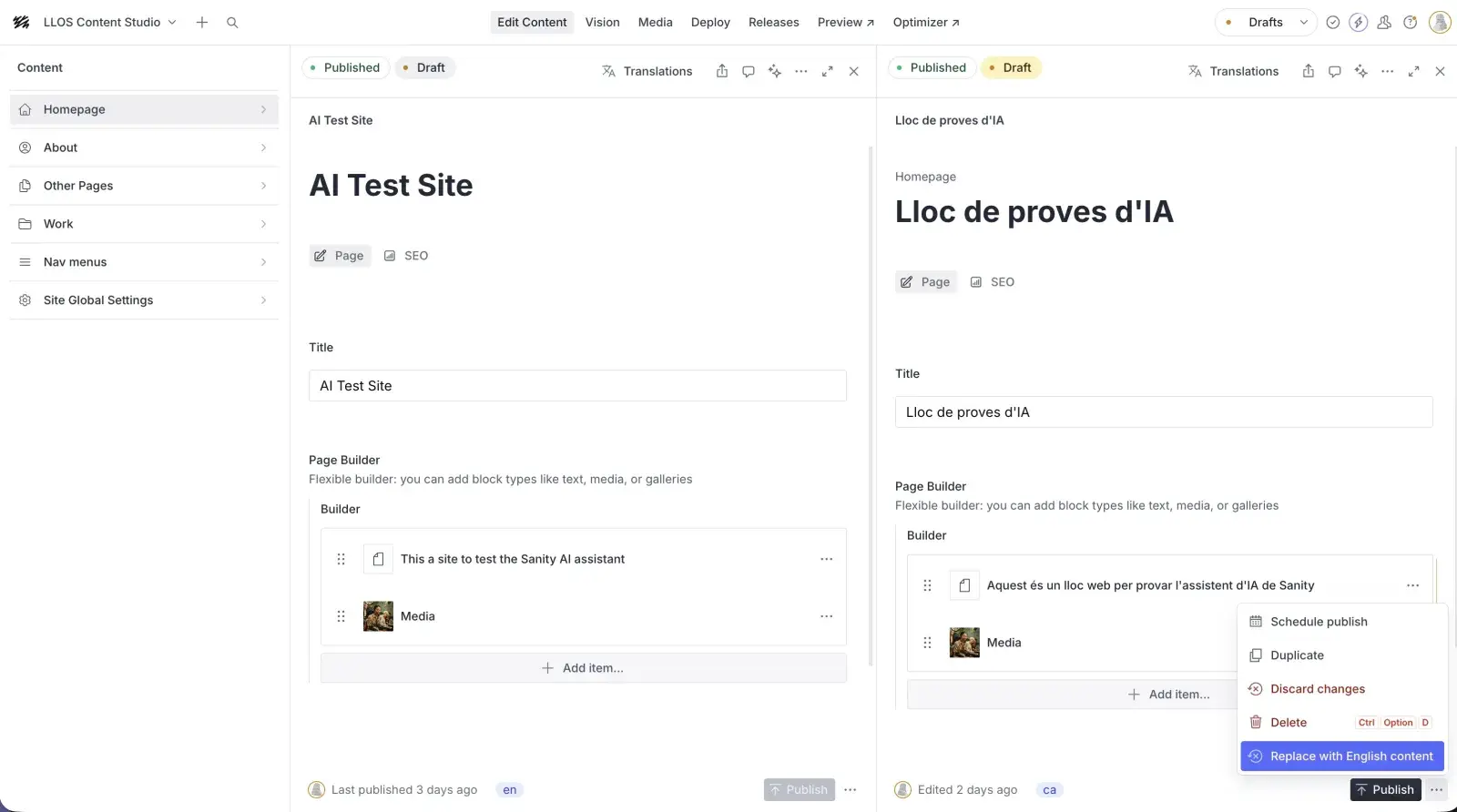
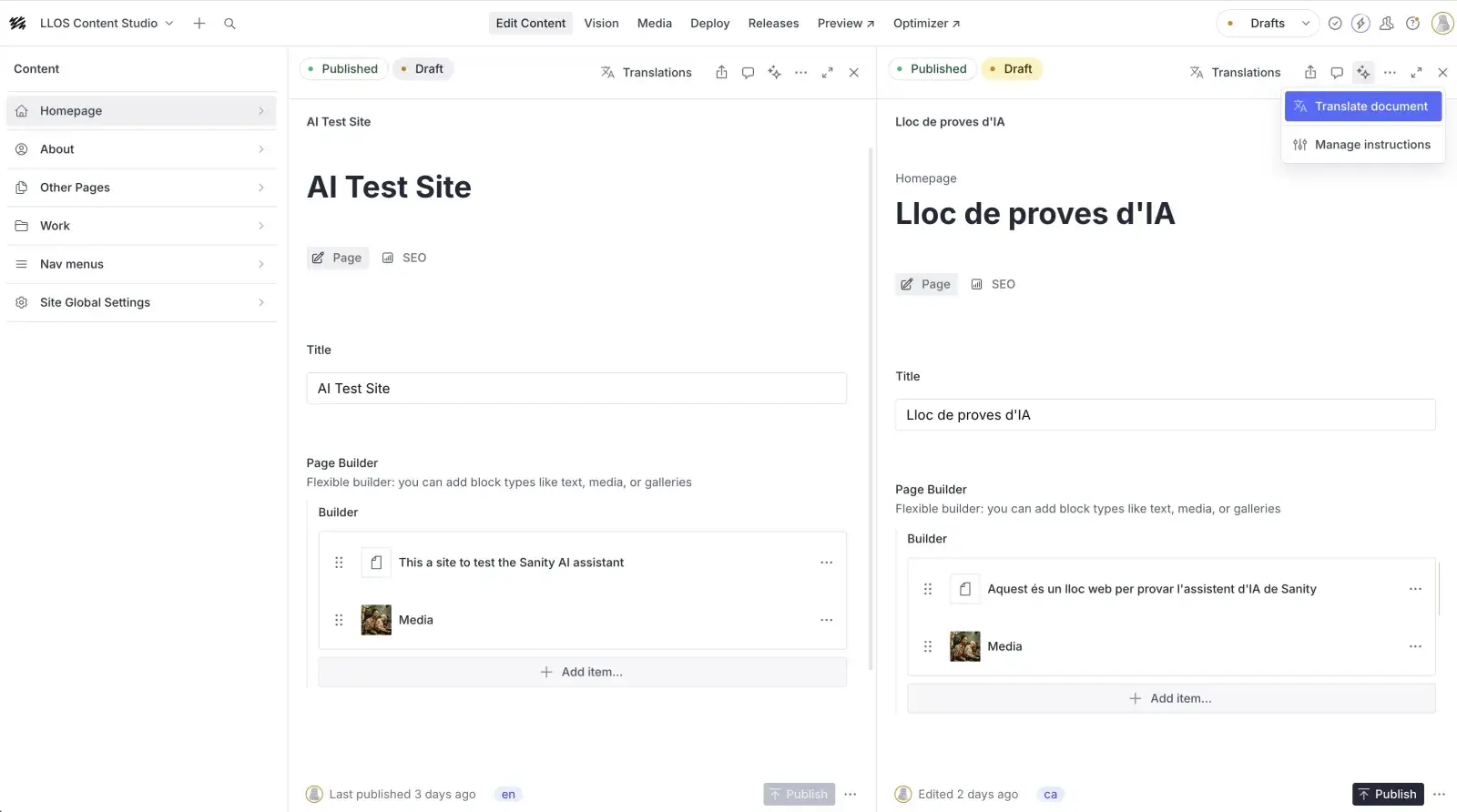
Actions for field translation
| Action | Where | What it does |
|---|---|---|
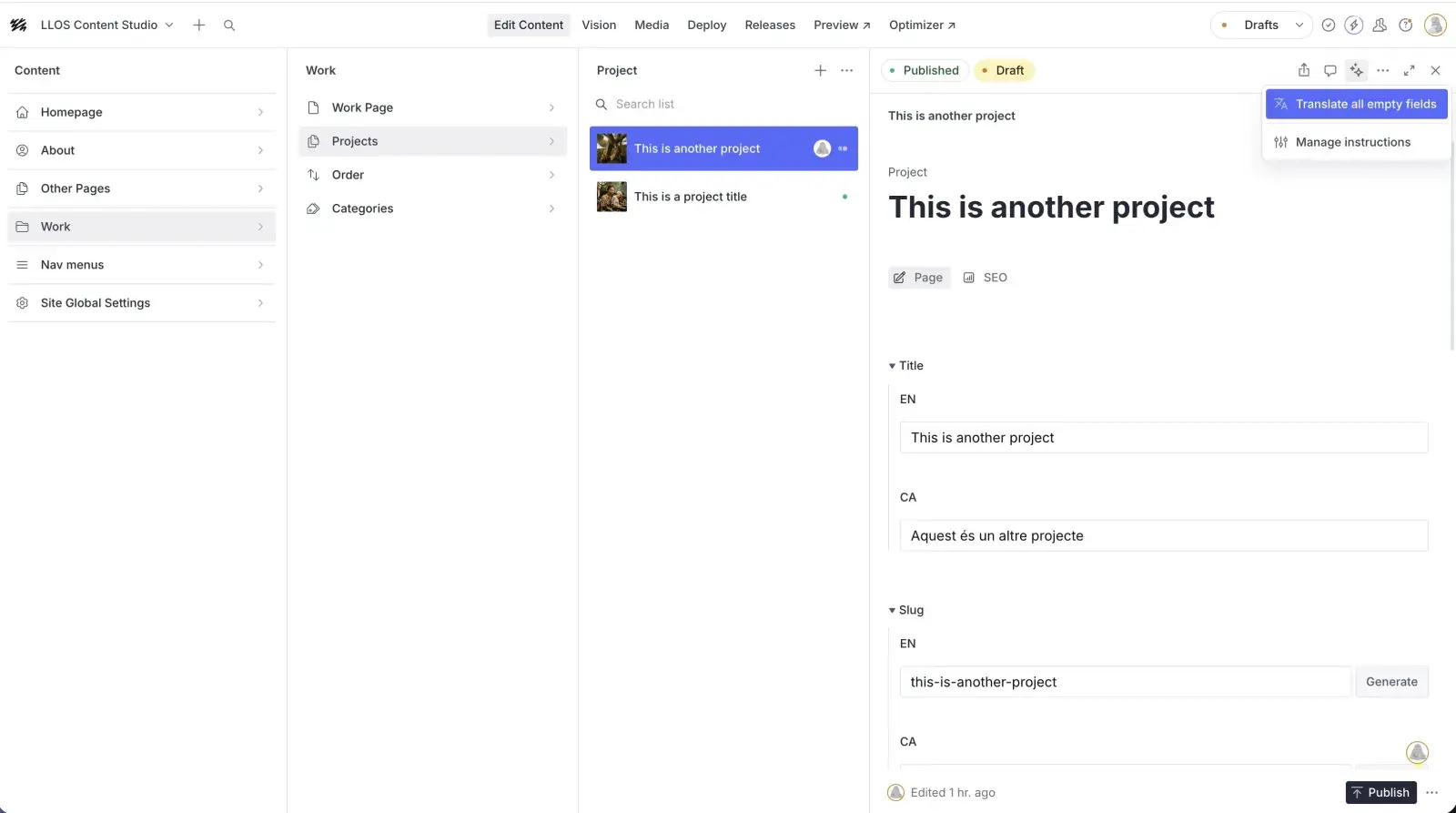
| Translate all empty fields | ✨ on the document | Translates every empty language field in the document, then fills the empty language slugs. |
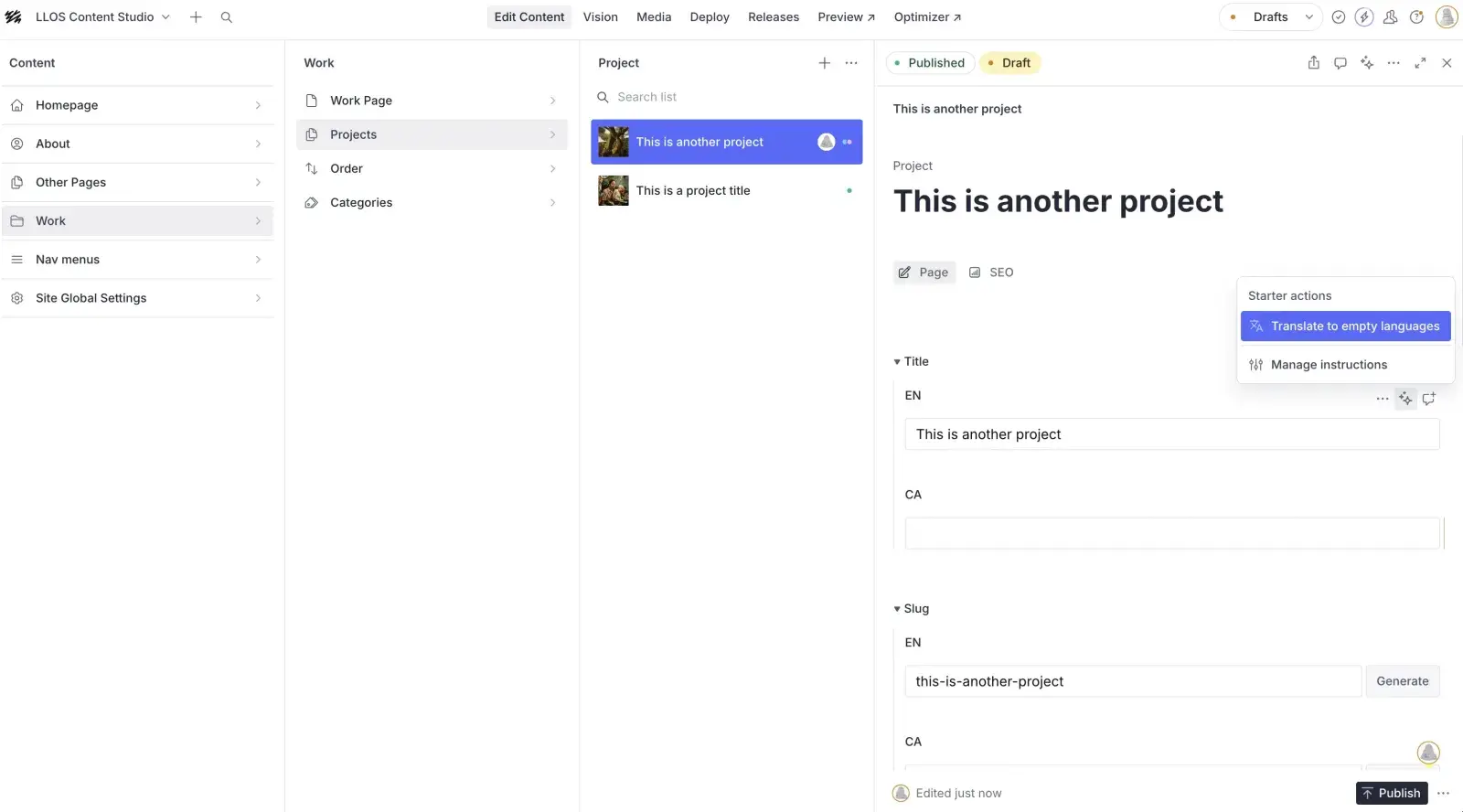
| Translate to empty languages | ✨ on an original-language field (e.g. title) | Translates that field into every language that's still empty. |
| Translate from English | ✨ on another language's field (e.g. title___ca) | Fills that one field with a translation of the original-language one. |
These actions never overwrite: fields with text are left alone. To redo a translation, empty the field and run the action again.
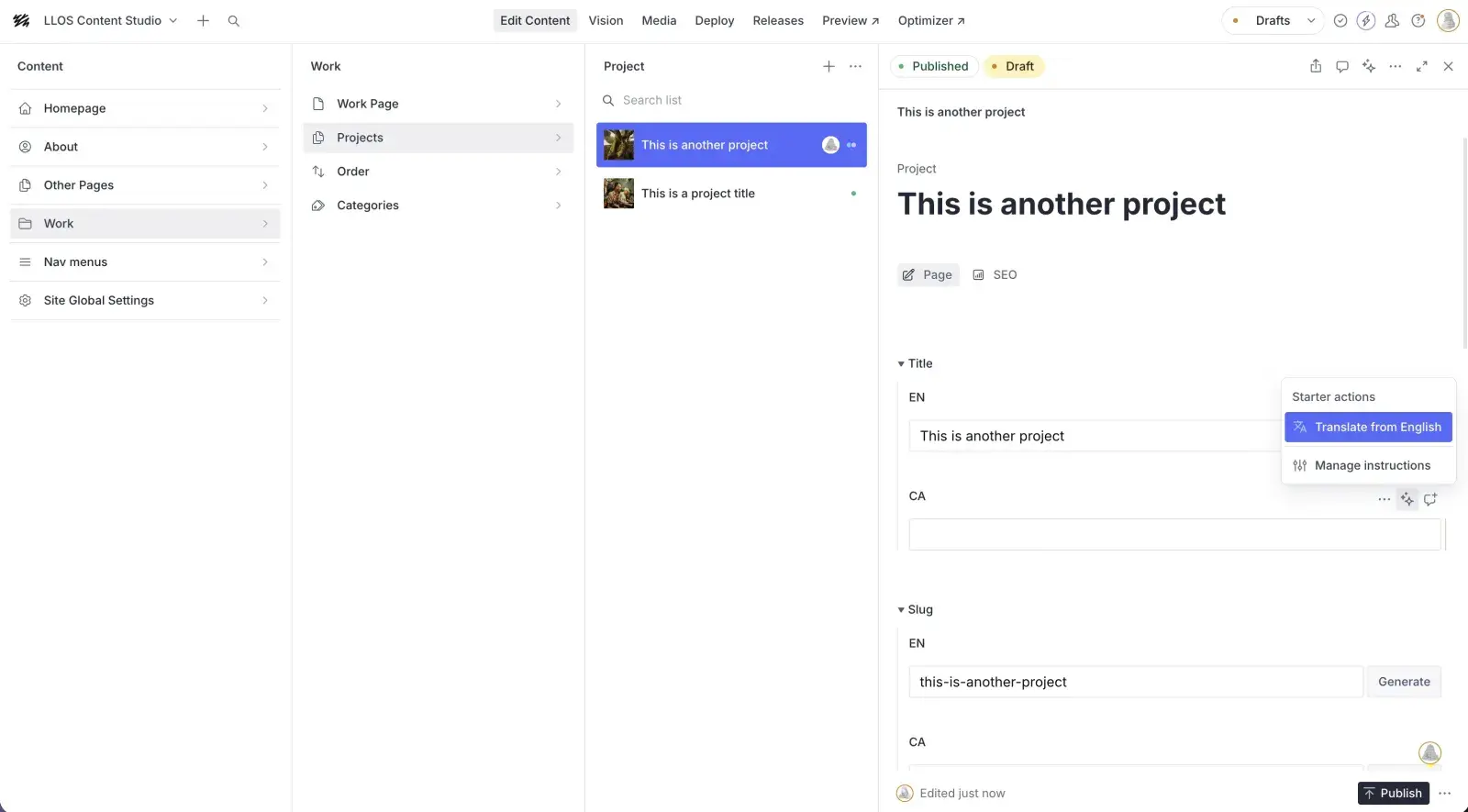
AI SEO actions (predefined in the starter)
Common SEO tasks, ready to use like the translation actions. Available on both kinds of documents:
| Action | Where | What it does |
|---|---|---|
| Generate alt text | ✨ on an image's Alternative text field | Describes the image, in that field's language. It never names people: when the person is the point of the image (a speaker, the team), add their name yourself. |
| Generate SEO title | ✨ on Meta Title (SEO tab) | Writes it from the page content, in the page's language, at a length that fits search results. |
| Generate SEO description | ✨ on Meta Description (SEO tab) | Same, for the description. |
They don't overwrite either. Once written, translate them like any other field.
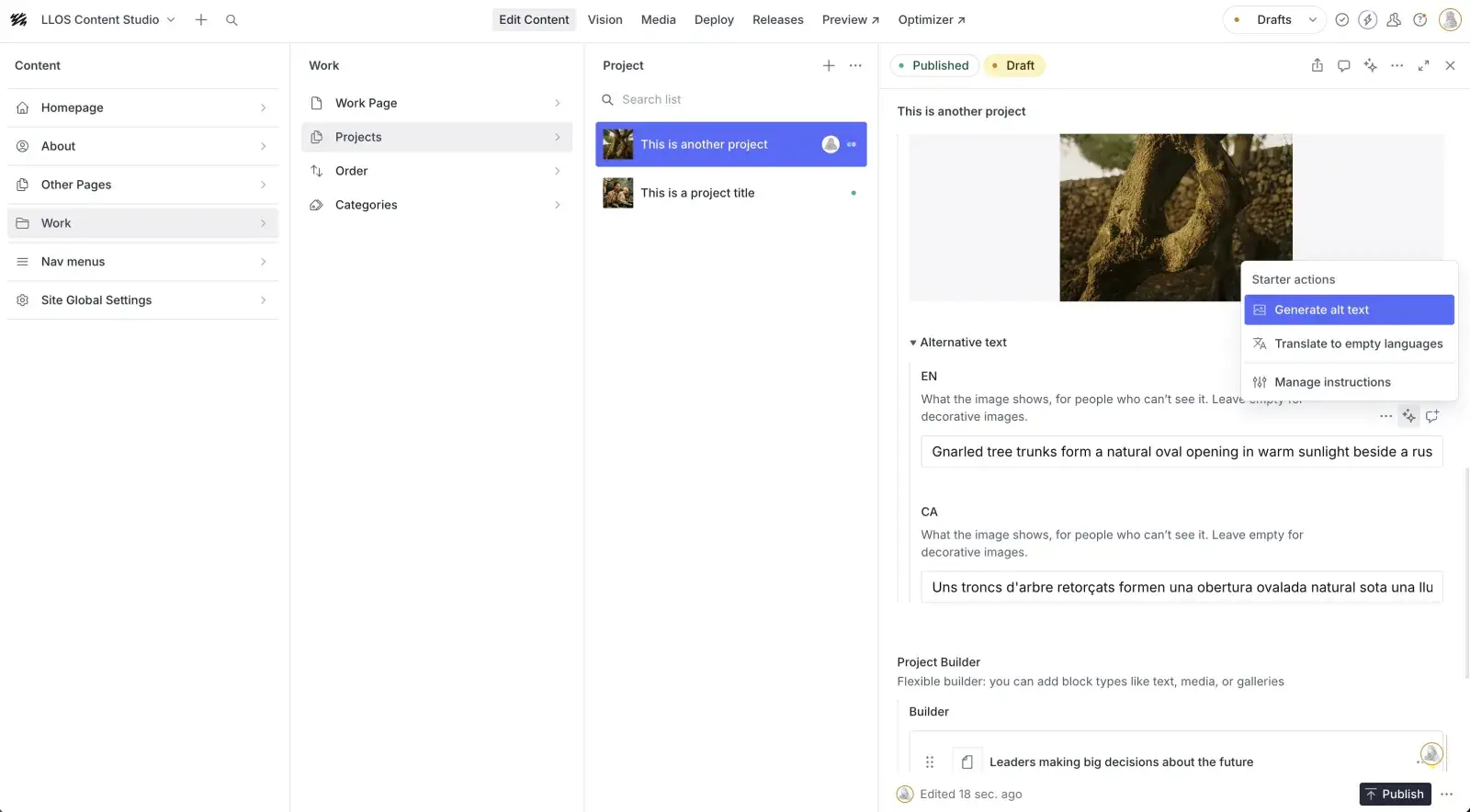
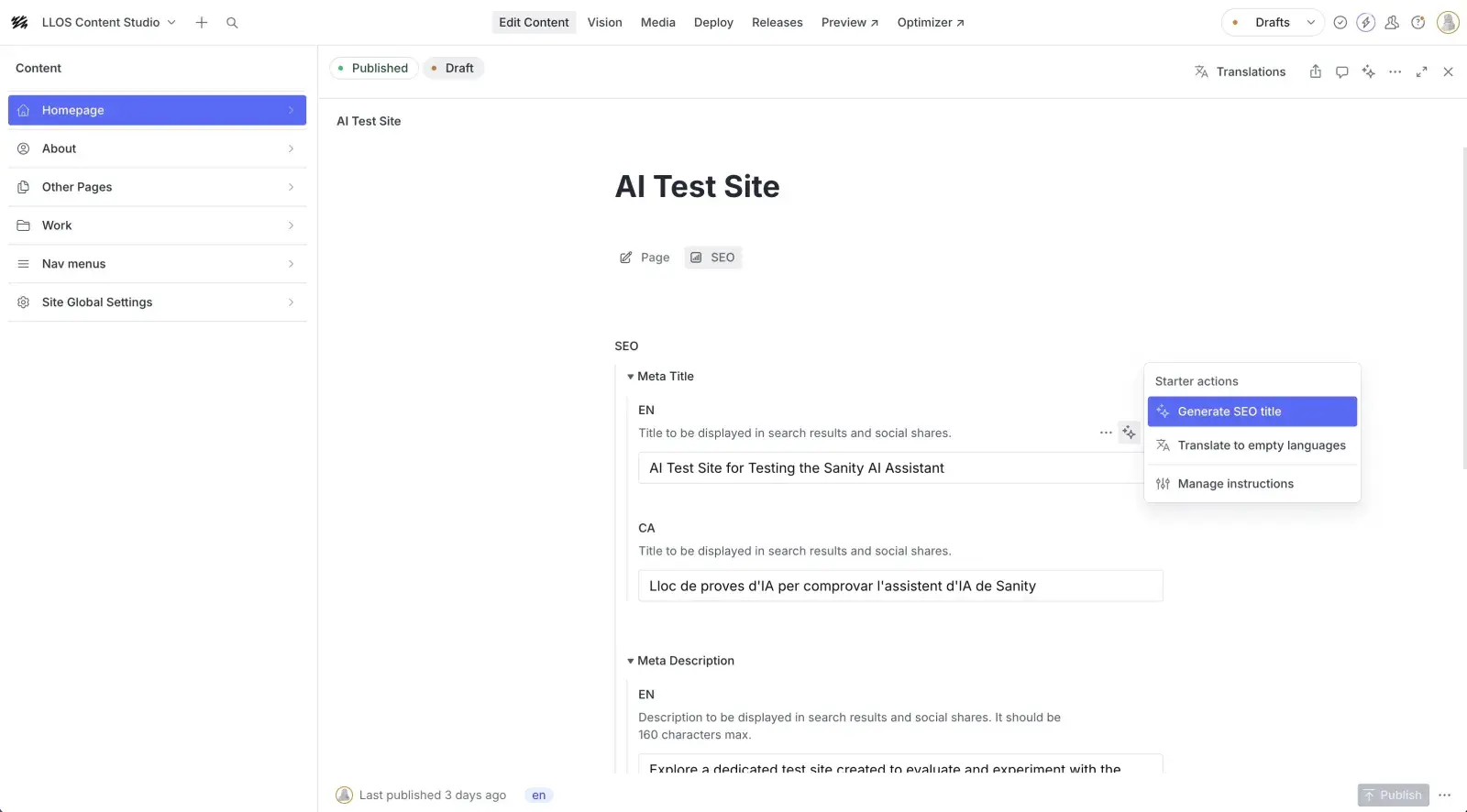
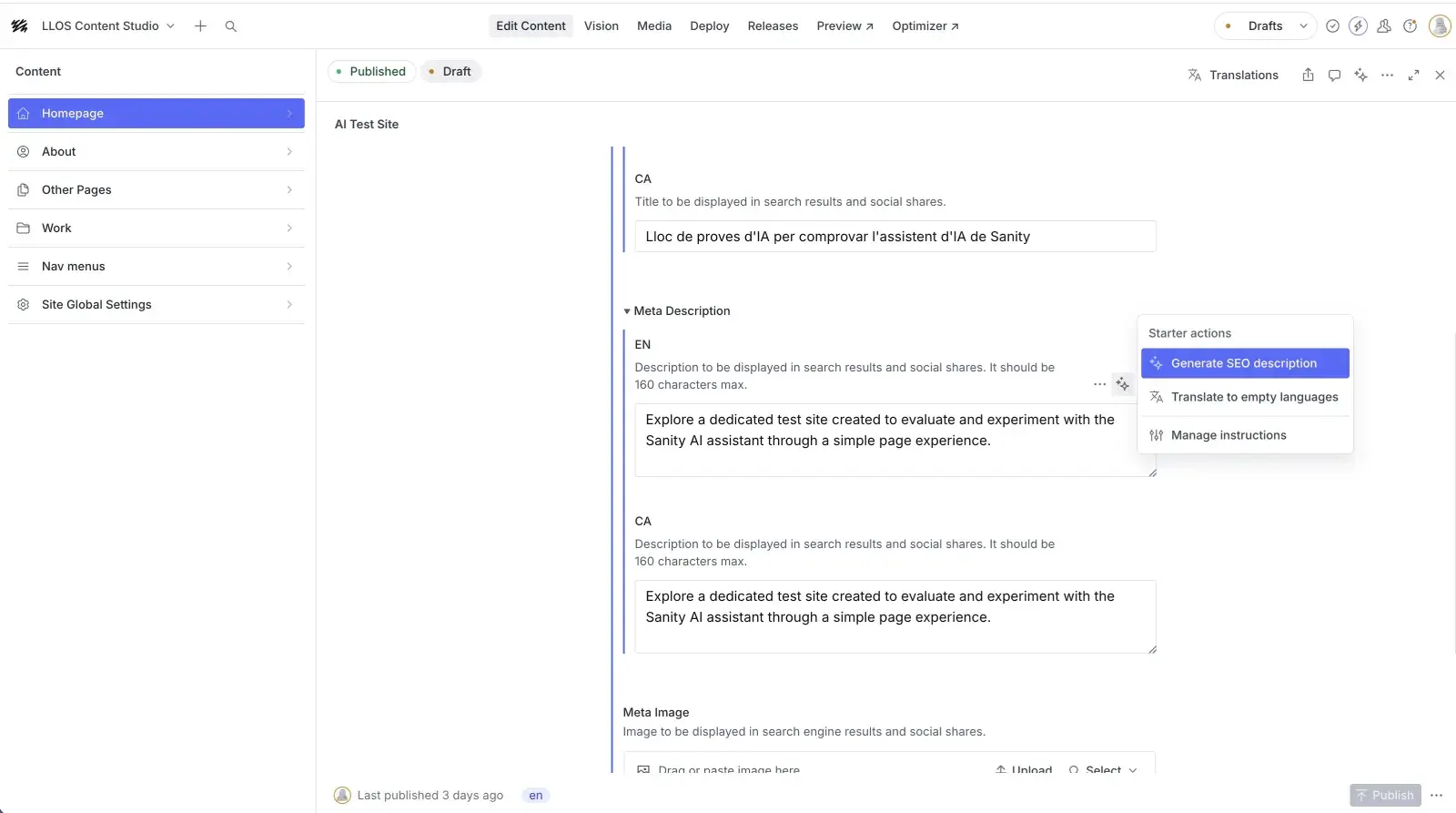
Predefined prompts
These prompts are predefined in the starter: they're not instructions, so they can't be edited from the Studio. To change them, edit cms/src/ai/generateSeo.ts and cms/src/ai/generateAltText.ts. The $ values are filled in by the action.
Generate alt text
Write alt text for the image in $language: one sentence, at most 125 characters, describing what matters for someone who can't see it. Include text shown in the image only when it's key to understanding it, like a sign or a title. Never name people, even if a name is visible (a badge, a caption). Don't start with "Image of" or "Photo of".
Generate SEO title: the site shows pages as Meta Title - Site Title, so on pages the limit leaves room for the site title, and the homepage, shown alone, includes it.
Pages:
Write the SEO meta title for the web page in $doc, in $language, at most $maxLength characters. Put the page's main topic first. Don't include the site name: it's added after the title. Use only facts from the page, not its SEO fields; don't invent claims. No quotes, all caps, superlatives or clickbait. Reply with the title only.

Homepage:
Write the SEO meta title for the home page in $doc, in $language, at most $maxLength characters, including the site name "$siteTitle". Use only facts from the page, not its SEO fields; don't invent claims. No quotes, all caps, superlatives or clickbait. Reply with the title only.
Generate SEO description
Write the SEO meta description for the web page in $doc, in $language, between 120 and 155 characters. Summarise what visitors will find on the page, with its main topic early, in one or two plain sentences in active voice. Use only facts from the page, not its SEO fields; don't invent claims. No quotes, all caps, superlatives or clickbait. No generic calls to action like "Click here". Reply with the description only.
The translation actions have no prompt of ours: they use Sanity's own translation.
Good to know
- The Growth plan includes a monthly quota of AI credits; beyond it, usage is billed (see Sanity's pricing). Every action uses credits, so prefer the document actions over translating field by field.
- If the field to translate from is empty, the action warns you instead of writing anything.
For developers
- AI Assist is off by default, as it needs the Growth plan. Turn it on with
SANITY_STUDIO_AI_ASSIST=truein the CMS.env. - The actions use Sanity's Agent Actions, which read the schema from Sanity. After any schema change, run
sanity schemas deploy. - The code lives in
cms/src/ai/(one file per action) andcms/src/components/ReplaceWithOriginalAction.ts.